
Web bookmarks are among our most valuable personal assets. Over years of browsing, we collect technical documentation, career research, recipes, and critical project references. Yet when it comes time to switch browsers, back up a device, or migrate from iPhone to PC, users discover an unwelcome surprise: iOS Safari refuses to let you export an HTML file of your bookmarks.
The Missing iOS Feature: Why Apple Restricts HTML Export to macOS
On a Mac, Safari’s bookmark export takes two seconds. Apple’s official Safari Mac User Guide explains how to import and export bookmarks with standard files.
On iPhone and iPad, however, Safari has no File menu and no export command in Settings. Apple assumes all iOS users also own a Mac and rely entirely on iCloud Safari synchronization. This creates several major roadblocks:
- Windows and Linux users are trapped: If your primary computer is a Windows PC or Linux laptop and your phone is an iPhone, you cannot easily move mobile Safari bookmarks to desktop Google Chrome or Firefox.
- iCloud sync syncs everything or nothing: If you accidentally delete a folder on one device, iCloud propagates that deletion to all your devices within seconds. Without an offline HTML file backup, your links are unrecoverable.
- Proprietary lock-in: Moving your data out of mobile Safari requires manual copy-pasting of individual URLs unless you use a dedicated bookmark manager with open export tools.
How to Export Bookmarks as HTML from Safari on Mac
If you have access to a Mac connected to your Apple ID with Safari iCloud sync turned on, follow these native steps:
Open Safari on macOS
Launch Safari. Wait a moment to ensure that recent bookmarks created on your iPhone have synchronized through iCloud.
Select File > Export Bookmarks
Click File in the top macOS menu bar, then click Export Bookmarks....
Save the HTML File
Choose a destination on your Mac (such as Desktop or iCloud Drive). Name the file (it defaults to Safari Bookmarks.html) and click Save. The generated document is standard Netscape Bookmark HTML.
How to Export Bookmarks from Chrome, Firefox, and Edge
If your bookmark library currently lives in another browser, you can export it in seconds using the exact same standard:
- Google Chrome: Press
Cmd+Option+B(Mac) orCtrl+Shift+O(Windows) to open Bookmark Manager. Click the three dots icon in the top-right corner and select Export bookmarks. - Mozilla Firefox: Press
Cmd+Shift+O(Mac) orCtrl+Shift+O(Windows) to open the Library window. Click Import and Backup in the toolbar and select Export Bookmarks to HTML.... - Microsoft Edge: Open Favorites (
Cmd+Shift+O/Ctrl+Shift+O), click the three dots menu at the top of the flyout, and select Export favorites.
Importing and Exporting HTML Bookmarks on iPhone with LinkPocket
To solve the missing iOS export capability, LinkPocket was engineered with native support for the universal Netscape Bookmark standard directly on iOS 17 and iOS 18.
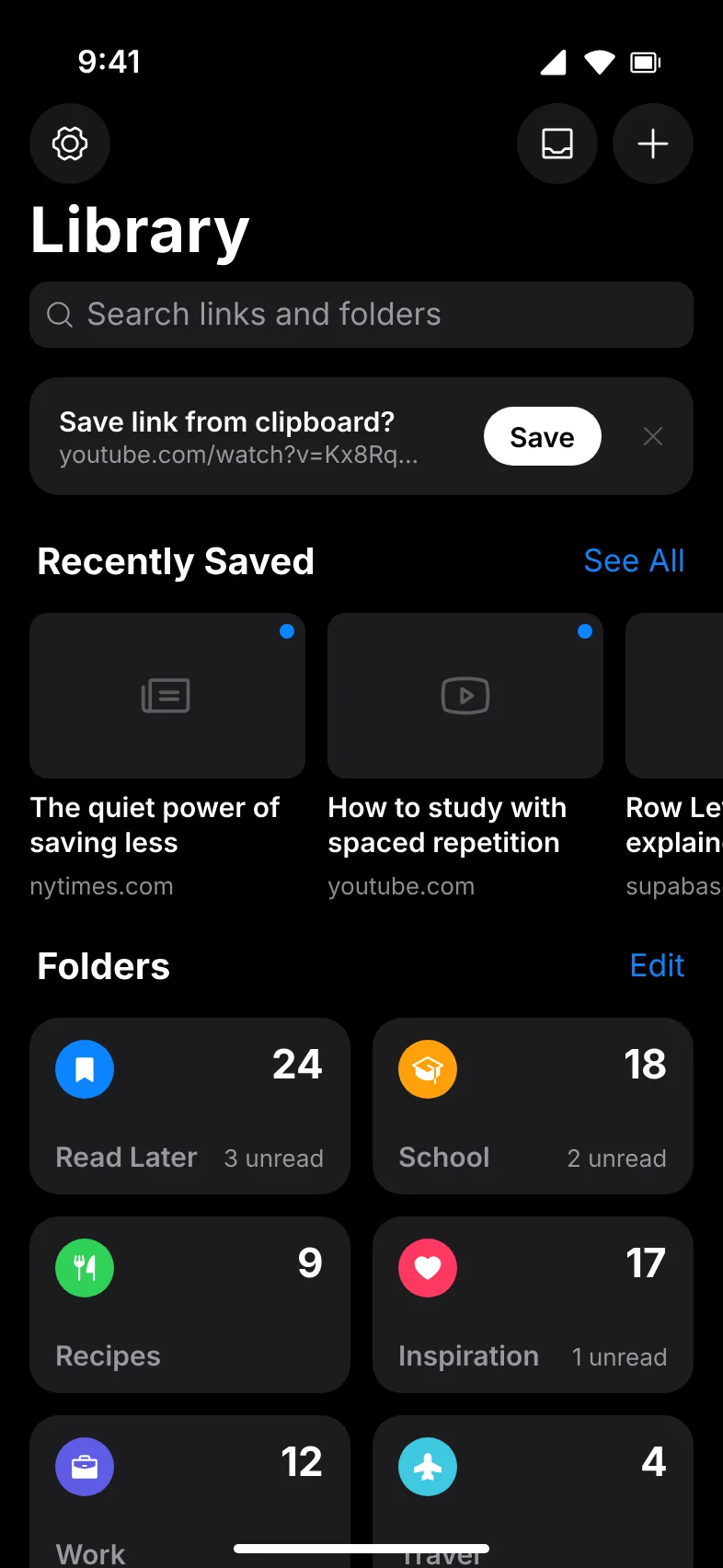
Importing HTML Files into LinkPocket
Whether you exported bookmarks from desktop Chrome, Firefox, or Mac Safari, you can import them directly onto your iPhone:
- Save the
.htmlbookmark file to your iPhone (via AirDrop, iCloud Drive, or the Apple Files app). - Open LinkPocket, tap the Settings gear icon, and select Import Bookmarks.
- Select your HTML file using the native iOS document picker.
- LinkPocket’s Import Sheet parses the file and presents a complete folder breakdown, link counts, and duplicate detection.
- Review the preview and tap Import. LinkPocket generates your custom folders and preserves your existing organization.
Exporting Universal Netscape HTML on iOS
You are never locked into LinkPocket. When you want to back up your collection or transfer links back to desktop browsers:
- Open LinkPocket and navigate to Settings > Export Bookmarks.
- Select Netscape HTML Bookmark File (or raw JSON archive).
- LinkPocket generates the standard HTML file in milliseconds and launches the native iOS Share Sheet.
- Save the file directly to Apple Files, upload it to iCloud Drive, AirDrop it to your laptop, or email it to yourself.
Take Control of Your Bookmarks on iOS
Download LinkPocket on the App Store. Enjoy seamless Netscape HTML import and export, visual folders, and complete freedom from platform lock-in.

Why Open Bookmark Standards Matter
Proprietary bookmark sync services often shut down, change pricing, or trap your data in opaque databases. Adhering to the open Netscape Bookmark standard offers three vital protections:
| Aspect | Proprietary Cloud Sync | Universal Netscape HTML |
|---|---|---|
| Portability | Restricted to devices running that company's app or OS. | Works natively in Safari, Chrome, Firefox, Edge, Brave, and Opera. |
| Longevity | Vulnerable to server shutdowns and API deprecations. | Unchanged standard since 1995; guaranteed readable for decades. |
| Backup Safety | Sync errors can propagate accidental folder deletions across all devices. | Static file snapshot immune to accidental cloud deletion or account lockouts. |
Step-by-Step Migration Checklist: Moving from Desktop to iOS
If you want to set up an organized, distraction-free reading hub on your iPhone, follow this quick checklist:
- Export from Desktop: Export an HTML file from Chrome, Safari, or Firefox using the steps above.
- Clean Up Stale Links: Optionally open the HTML file or review your bookmarks to remove dead websites or temporary links before importing.
- Import into LinkPocket: Use LinkPocket’s Import Sheet to map your categories and review duplicates.
- Assign Color Swatches: Give each folder a distinct color and icon glyph using LinkPocket’s visual folder tools.
- Clean your Safari Reading List: Archive or empty your old reading backlog with our Safari Reading List cleanup guide.
Frequently Asked Questions
Apple’s native mobile Safari does not include an "Export Bookmarks" feature on iPhone or iPad. To export on mobile, you either sync through iCloud to a Mac or use an iOS app like LinkPocket that generates standard Netscape Bookmark HTML files directly on your device via Apple Files and the Share Sheet.
The Netscape Bookmark format is a universal HTML standard created in the 1990s and supported by all major browsers (Apple Safari, Google Chrome, Mozilla Firefox, and Microsoft Edge). It stores folder hierarchies and bookmarks as an HTML file with DL, DT, and H3 tags.
No. LinkPocket’s import engine performs automated duplicate detection, matching incoming URLs against your existing library so you can preview changes and avoid duplicate links.
You can import your bookmarks into LinkPocket on your iPhone, use LinkPocket’s export function to generate a standard Netscape HTML file, send it to your PC via iCloud Drive or email, and import it into Chrome via Bookmark Manager > Import bookmarks.
Yes. LinkPocket supports exporting both universal Netscape HTML files for web browsers and structured JSON archives for developer backups and programmatic data portability.