
Safari’s Reading List feature was introduced with a brilliant premise: tap the eyeglasses icon to save any interesting webpage for offline reading later. In practice, however, Reading List quickly turns into a digital graveyard. You add articles with every good intention, but as weeks pass and hundreds of links accumulate, the endless vertical list becomes too overwhelming to open.
Why Safari Reading List Becomes a Digital Graveyard
The core limitation of Apple’s native Reading List is architectural. Apple documents how to save and manage reading list items in their official iPhone User Guide, but its design hasn't fundamentally changed in years:
- Strictly flat hierarchy: There are no folders, no sub-categories, and no tags. A 10,000-word academic whitepaper sits right next to a 3-ingredient pasta recipe and a funny tweet.
- Out of sight, out of mind: Because items are sorted strictly by date added, valuable long-form pieces get buried underneath daily news snippets. After 50 links, older articles are effectively lost forever.
- Hidden device storage drain: When iOS has “Automatically Save Offline” enabled, Safari caches full web pages, images, and fonts locally. A bloated Reading List can quietly consume hundreds of megabytes of iPhone storage.
- All-or-nothing unread state: You can toggle between “Show All” and “Show Unread”, but there is no middle ground: no priority tags, no estimated reading times, and no visual indicators of what matters most.
Step-by-Step: How to Clear & Bulk Delete Reading List on iPhone
Before establishing a sustainable bookmarking habit, clean out the stale clutter currently weighing down Safari:
Open the Reading List Tab in Safari
Launch Safari on your iPhone. Tap the Bookmarks icon (the open book symbol) at the bottom of the screen. Tap the center tab with the eyeglasses icon to view your saved Reading List.
Quick-Delete Individual Articles
If you only have a few items to remove, simply swipe left across any article row in the list and tap the red Delete button.
Bulk Delete Multiple Articles at Once
Tap Edit in the bottom-right corner. Selection circles will appear beside every link. Tap each link you want to discard (or scroll and tap continuously), then tap Delete in the bottom-left corner.
Disable Offline Storage to Free Up Memory
To prevent Safari from automatically caching future reading list items locally, open the iOS Settings app, scroll down to Safari, scroll to the bottom section labeled Reading List, and toggle off Automatically Save Offline.
The 3-Step Triage Method: Reclaim Reading Sanity
Deleting stale bookmarks is only half the battle; without a triage system, the backlog returns within days. Productive readers use a three-step protocol:
| Triage Action | Criteria | Where It Goes |
|---|---|---|
| 1. Read Immediately | Takes under 3 minutes to consume (quick announcements, tweets, short tutorials). | Read on the spot; do not save to any list. |
| 2. File to Folder | Long-term reference, research, recipes, code snippets, or project documents. | Categorized directly into a dedicated folder (e.g. Work, Recipes, Code) via visual bookmark folders. |
| 3. Delete / Archive | Time-sensitive news, expired deals, completed reads, or impulse saves. | Purged immediately or marked as read to clear the queue. |
A Modern Unread Queue: Amber Indicators and Swipe Gestures
Instead of dumping all links into a flat Safari list, modern iOS workflows separate permanent references from active reading queues. This is where LinkPocket excels.
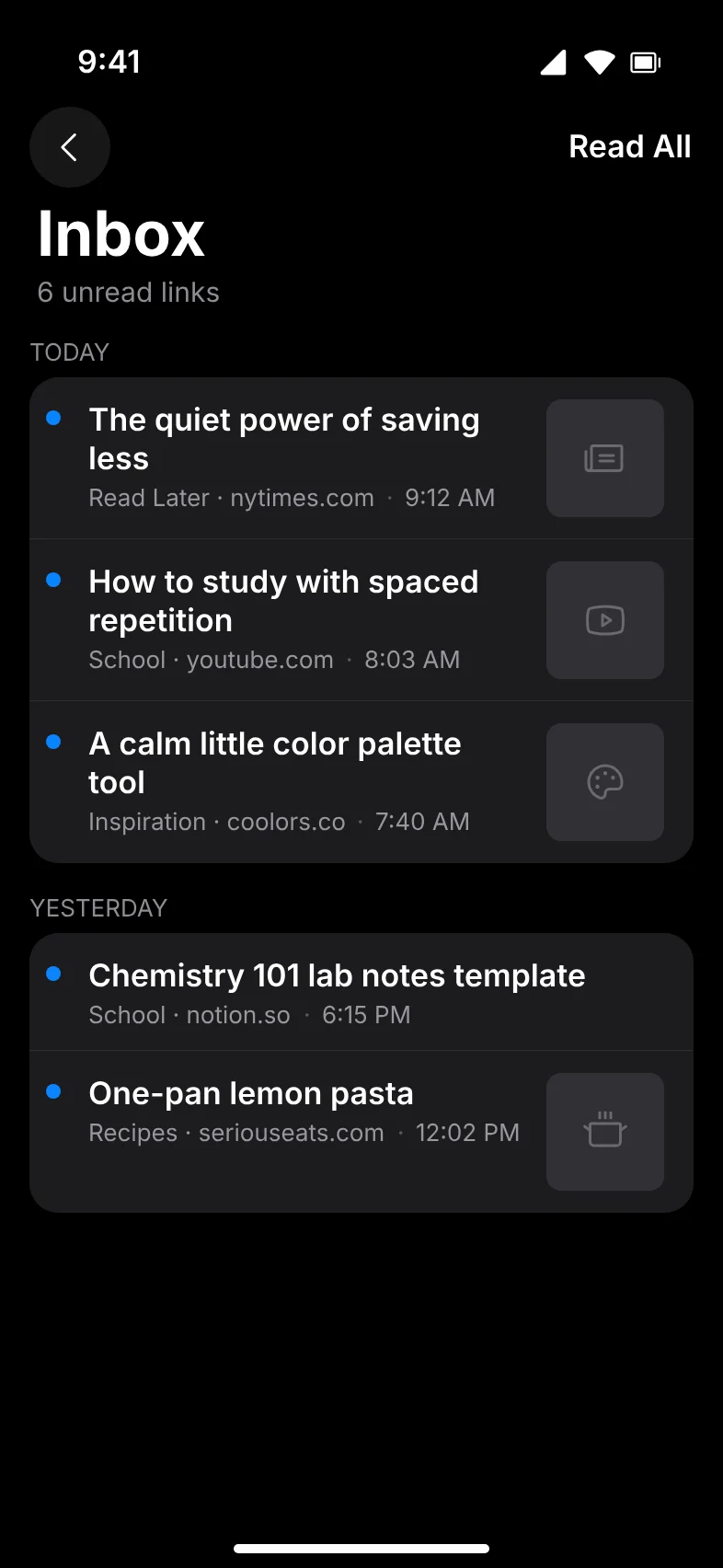
Visual Amber Indicators
In LinkPocket, every new bookmark defaults to an unread status marked by a vibrant amber dot (calibrated to #FFB546 on dark canvas and #C2620A in light mode for strict WCAG AA contrast). You never have to guess whether an article has been read or if you left it halfway through.
Mail-Style Swipe Triage Actions
Clearing a backlog should feel tactile and fast. LinkPocket introduces gesture-driven row actions inspired by Apple Mail:
- Swipe Right: Instantly toggles the read/unread state. Finished reading an article? A single rightward flick marks it complete and clears the amber badge.
- Swipe Left: Smoothly exposes the delete action. To prevent accidental data loss, LinkPocket requires a deliberate second tap on the revealed delete button, ensuring you never swipe away an important link by accident.
- Read All Button: If you take a vacation or decide to declare reading list bankruptcy, the trailing navigation bar includes a one-tap Read All command that clears every pending indicator at once.
Daily Timelines: Organizing by Recency
Instead of an unsegmented stream of hundreds of URLs, LinkPocket automatically clusters unread articles into clear daily cohorts:
- TODAY: Items saved during your current browsing session.
- YESTERDAY: Articles saved yesterday afternoon or evening.
- THIS WEEK: Reads accumulated over the past seven days.
- Chronological Archives: Older links group automatically by month and year.
This temporal structure lets you focus on today’s reads without feeling paralyzed by items saved three months ago.
Turn Your Reading Backlog into an Inbox Zero Habit
Download LinkPocket on the App Store. Experience crisp amber unread dots, mail-style swipe gestures, and visual folder filing.

5 Proven Habits to Maintain "Reading List Zero" on iOS
- The 2-Minute Rule: If an article can be skimmed in under two minutes, read it on the spot. Don't add micro-content to your queue.
- Scheduled Reading Windows: Set aside 20 minutes on weekend mornings or during your commute to process the unread queue.
- File Permanent Reference Immediately: If you find a software manual, tax guide, or recipe, save it directly into a permanent folder rather than letting it sit in unread queues.
- Ruthless Archiving: If an unread article has sat untouched in your queue for more than 30 days, swipe left and delete it. If it was truly critical, you will encounter it again.
- Export Regular HTML Backups: Periodically export an HTML backup of your saved links so you can clear out older bookmarks with complete peace of mind.
Frequently Asked Questions
Open Safari, tap the Bookmarks icon (the open book symbol), select the Reading List tab (eyeglasses icon), tap Edit in the bottom-right corner, check the circles next to the links you wish to remove, and tap Delete in the bottom-left corner.
No. Deleting an item from your Safari Reading List only removes your saved bookmark shortcut and its offline cache from your iPhone. The author's website remains live and accessible on the web.
If "Automatically Save Offline" is turned on in iOS Settings > Safari, your iPhone downloads full offline copies (including images, stylesheets, and scripts) of every saved Reading List page, which can easily take up hundreds of megabytes over time.
No. Apple designed Safari Reading List strictly as a single, flat chronological stream with no folder, sub-folder, or tag capabilities. For folder organization combined with unread tracking, an app like LinkPocket is recommended.
LinkPocket decouples your unread queue from permanent storage. Links are organized into custom topical folders while simultaneously appearing in a unified Unread queue with amber dots. Once you read or swipe an item, it leaves the unread queue but remains safely preserved in its folder.