
Saving webpages on mobile Safari is effortless—a single tap on the Share icon or a quick press of the bookmark button tucks an article away. But after a few weeks of browsing, your Favorites screen and Bookmarks list turn into an impenetrable wall of URLs. Finding that recipe, work document, or design inspiration you saved last month becomes an exercise in frustration.
The Mobile Safari Bookmark Problem
While desktop browsers like Safari on macOS offer spacious bookmark sidebars and drag-and-drop management, mobile Safari on iPhone is constrained by compact touch screen geometry. Apple documents the standard iOS bookmarking procedure in their official iPhone User Guide, but managing a large collection reveals three persistent pain points:
- Deeply buried navigation: Accessing a nested bookmark requires tapping the Bookmarks button, selecting the Bookmarks tab, finding the parent folder, and scrolling through a vertical list.
- Clunky drag-and-drop: Moving links between folders on a small screen requires precision touch gestures that frequently misfire, accidentally dropping links into adjacent folders.
- Zero visual distinction: Native Safari treats every folder identically—a monochrome blue folder icon against a plain row. You cannot assign custom color codes, glyphs, or priority badges.
Step-by-Step: Organizing Bookmarks with Native Safari Tools
If you want to organize your existing bookmarks using Apple's built-in tools on iOS 17 or iOS 18, follow these steps:
Open the Safari Bookmarks Panel
Launch Safari on your iPhone or iPad. Tap the Bookmarks icon in the bottom toolbar (or top sidebar on iPad). Make sure the leftmost tab (the open book symbol) is selected.
Enter Edit Mode
Navigate to the location where you want your new folder to live (for instance, inside Favorites or at the root Bookmarks level). Tap Edit in the bottom-right corner of the screen.
Create a New Folder
Tap New Folder in the bottom-left corner. Type a clear, concise name for your folder (e.g., “Work Projects”, “Recipes”, or “Reading List”). Tap Location if you wish to nest it inside another folder, then tap Done on the keyboard.
Move Existing Bookmarks into the Folder
While still in Edit mode, tap directly on any bookmark you want to move. Tap the Location row, choose your newly created folder, and tap the back button. Alternatively, touch and hold the three horizontal drag handles on the right of any bookmark row and slide it up or down into a folder.
Save New Pages Directly to Folders
When you encounter a new article you want to keep, long-press the Bookmarks icon in Safari and select Add Bookmark. Tap the Location field before tapping Save to file it directly into your target folder.
Upgrading to Visual Folders with LinkPocket
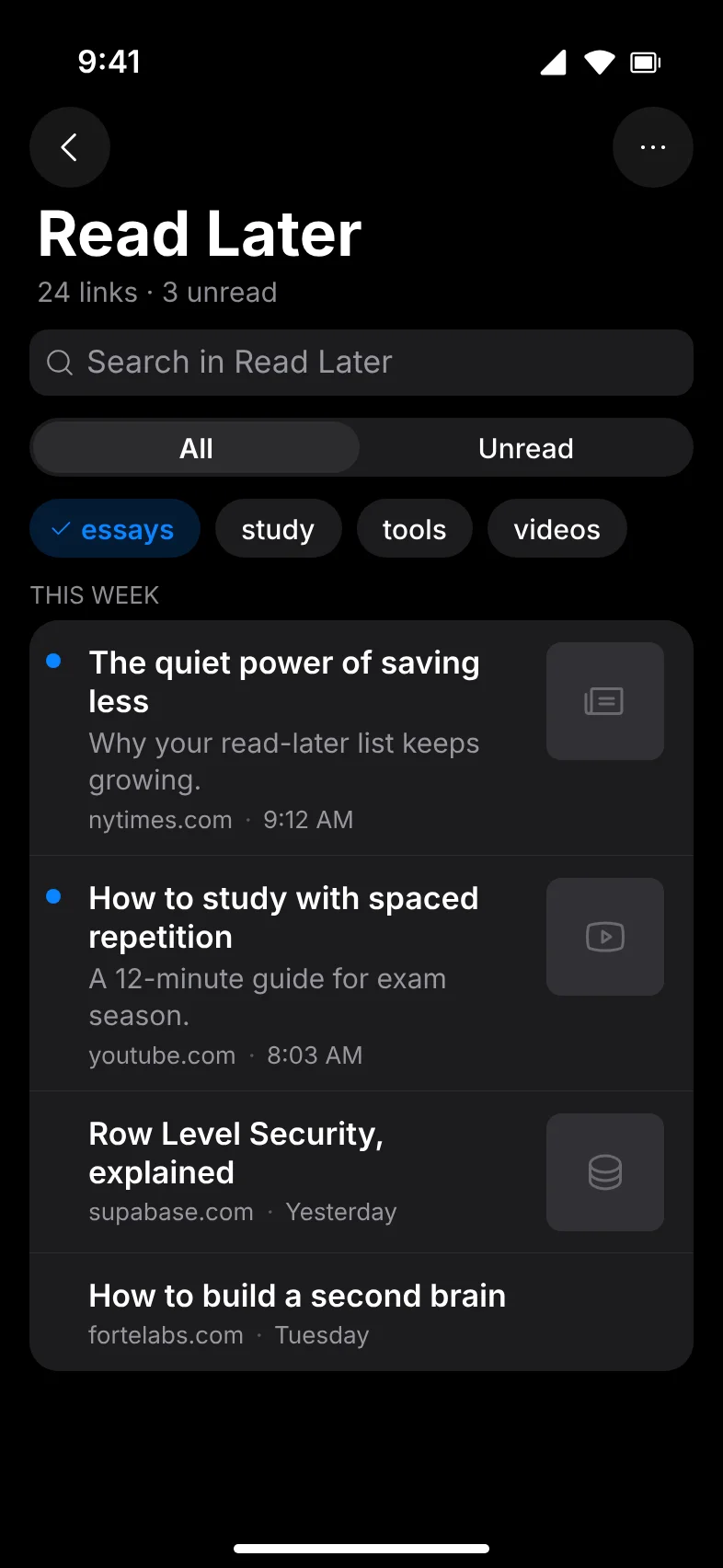
While native Safari folders provide basic grouping, power users quickly hit the limits of a text-only interface. This is why many iOS users pair Safari with LinkPocket, an iOS bookmark manager engineered specifically to make mobile folder organization fast and visual.
10 Curated Apple System Colors
LinkPocket replaces monochrome lists with 10 carefully calibrated Apple system color swatches that adapt seamlessly across Dark and Light mode:
- Blue (
#007AFF): Ideal for general reference, tech documentation, and articles. - Red (
#FF3B30): High-priority reading, urgent tasks, and deadline-driven research. - Orange (
#FF9500): Recipes, cooking inspiration, and food blogs. - Yellow (
#FFCC00): Finance, taxes, investments, and purchase wishlists. - Green (
#34C759): Work projects, client deliverables, and professional portfolios. - Teal (
#30B0C7): Travel guides, itineraries, and outdoor activities. - Indigo (
#5856D6): Academic research, course studies, and long-form essays. - Pink (
#FF2D55): Design ideas, typography, aesthetics, and creative inspiration. - Brown (
#A2845E): Books, literary reviews, and long-term reading archives. - Gray (
#8E8E93): System backups, account receipts, and cold archives.
16 Curated SF Symbol Glyphs
Instead of identical folder silhouettes, you can assign intuitive icon glyphs to every folder—including bookmark, book, briefcase, restaurant, sparkles, heart, code-slash, game-controller, airplane, home, and fitness. When scanning your collection, your eyes locate the visual icon in a fraction of a second.
Saving Directly from Safari in Under 2 Seconds
The biggest flaw with traditional bookmarking is that filing a link interrupts your reading. You have to open a folder picker, scroll through hierarchies, and tap confirm.
LinkPocket solves this through its native iOS Share Sheet Extension. When reading any page in Safari:
- Tap the standard iOS Share button at the bottom of Safari.
- Tap the LinkPocket action icon.
- LinkPocket's on-device metadata engine automatically extracts the webpage title, description, and thumbnail preview.
- The built-in category engine evaluates the page content against your folders and pre-selects the right destination. Confirm with a single tap, and you are immediately returned to your reading flow.
Experience Effortless Bookmark Filing
Download LinkPocket free on the App Store. Organize your links into colorful custom folders with smart suggestions and zero ads.

Instant Search & Month Stepper Navigation
Even with folders, finding a bookmark saved six months ago can be daunting. LinkPocket combines two navigational tools to keep large collections manageable:
- Client-side instant search: As you type in the search bar, LinkPocket filters titles, descriptions, and domains across all folders instantly without network latency.
- Chronological Month Stepper: Inside any folder, tap the month stepper to jump directly to links saved in a specific month (e.g., September 2026), eliminating the need for infinite scrolling.
3 Recommended Bookmark Folder Frameworks for iOS
To maintain an organized library over time, adopt a clear folder structure. Here are three tested frameworks:
| Framework | Recommended Folders | Best For |
|---|---|---|
| Activity-Based | Work, Personal, Read Later, Recipes, Travel, Finance | Everyday browsing and lifestyle balance. |
| Mobile PARA | Projects (active), Areas (ongoing), Resources (topics), Archives | Knowledge workers, freelancers, and students. |
| Priority Funnel | Inbox (unfiled), Reading This Week, Reference Vault | High-volume readers who suffer from bookmark overload. |
Frequently Asked Questions
Open Safari, tap the Bookmarks button (the open book symbol), tap Edit in the lower-right corner, and tap New Folder in the lower-left. Enter a name for your folder and tap Done.
No, Apple's native Safari does not support custom colors or icons for bookmark folders. To organize bookmarks with Apple system color swatches and custom SF Symbol glyphs, use LinkPocket, which features 10 curated color themes and 16 custom icons.
In native Safari, bookmarks must be moved individually by tapping Edit and adjusting each bookmark's Location setting. For rapid organization of large libraries, you can export bookmarks as an HTML file into LinkPocket, which preserves folder trees and enables fast tagging.
Safari defaults to saving every new bookmark into Favorites or the root Bookmarks list without prompting you to file it. Without visual categorization, unread tracking, or category suggestions, saved links rapidly pile up into an unmanageable list.
Yes. While iOS Safari lacks a direct HTML export feature, LinkPocket allows you to export your entire library at any time as universal Netscape HTML, which can be imported into Safari, Chrome, Edge, or Firefox on Mac and PC.